ORDEER FREE
Why is Ordeer EPOS free?
We believe small businesses should be able to run their tills without paying for software every month. That's why our standalone EPOS software is free, with optional upgrades when you need more.
Get free EPOS- BLT Sandwich£9.54
- Chocolate Brownie x 2£14.28
- Chocolate Muffin£3.60
£3.00 · Tax £0.60
Remove1
- Subtotal
- £22.85
- Tax
- £4.57
- All Products
- Hot Drinks
- Cold Drinks
- Pastries
- Sandwiches
- Beer & Wine
- Breakfast
- Cocktails
- Desserts
- Kids
- Mains
- No/Low Alcohol
- Alcohol Free Lager£4.25
- Americano£2.95
- Avocado Toast£8.95
- BLT Sandwich£7.95
- Caesar Salad£9.95
- Cappuccino£3.35
- Cheese Toastie£6.50
- Chicken Wings£7.95
- Chicken Wrap£8.50
- Chips£3.95
- Chocolate Brownie£5.95
- Chocolate Muffin£3.00
Added Chocolate Muffin. Cart now has 3 item(s).
- Settings
- Printers
- Kitchen
- Held Orders
- Tables
- Register
- Software licence
- £0
- Sales reports
- 12 months
- Storage
- Local on your till
What is free POS software?
A point of sale is where a customer completes a purchase. That might be a shop counter, a table in a restaurant or the place where a takeaway hands over an order.
Point-of-sale software records what you sold and how the customer paid. It usually brings together the basket or order, product prices, receipts and sales reports. A POS system can also include the till, barcode scanner, printer, cash drawer and payment terminal around it. EPOS means electronic point of sale, a term used in the UK for the same kind of digital till system.
Free licence, trial or open source?
A free software licence gives you access to a defined set of features without a subscription for that licence. A free trial gives you access for a limited time, often to a paid plan. Open-source software makes its source code available under a licence, which says what you may do with it. The right to use or modify code and the cost of running the system are separate questions.
What is usually limited?
Free POS software may cover a single register, basic stock tracking or a set period of reporting. Limits can also apply to staff accounts, locations, support and connections to other software. Ask which tasks you could still do if you stayed on the free plan after your business grew.
Why Ordeer offers Free
Better development tools made it practical for us to build the till software once and offer it to independent businesses without a licence fee. Ordeer charges for optional services such as cloud access, support and custom development.
Ordeer Free is a standalone retail and hospitality till licence with sales, orders, products, stock and 12 months of local reporting. It has no trial deadline or required upgrade.
How POS software works, from sale to report
Follow one sale through the till. Each step gives a different member of staff information they can use.
Build the basket
Scan a product or find it by name. Select the right size or variation, then check quantities and any discount before taking payment.
Record payment
The till totals the basket and records the method used. For a separate card terminal, enter the amount there and confirm authorisation before closing the sale.
Issue the receipt
The customer receipt shows what was sold and how much was paid. A hospitality order may also need a kitchen ticket with preparation instructions.
Update records
The completed sale becomes part of the day’s figures. Where products are stock-tracked, the sale reduces recorded quantities on the relevant till or shared system.
Set up the products once
The catalogue gives each item a name, price and, when used, a barcode. A clothing shop may need different stock records for each size. A café may have one drink with choices for milk or size. Check whether those choices need their own price, preparation note or stock count before you set up the menu.
Use the records after checkout
The shift report tells staff what the till logged as cash, card or another method. Compare it with the drawer count and card terminal totals for the same period. Review prices, refunds and voids before changing stock or sales figures. Record a delivery or stock adjustment through the appropriate process so that a shelf count and the till’s records can be compared later.
- Basket
- Two units of the same product
- Payment record
- One completed card sale
- Stock on this till
- Eight left from ten
- Close of day
- Match the payment to the terminal record
If the shelf has seven units left, check for damage, another sale or a counting error before adjusting the record.
Offline POS vs cloud POS
Work out where the sale is saved, which devices need to share it, and what keeps working if the connection drops.
Standalone and local
A standalone till keeps its own records. It can suit a shop with one counter and nobody checking sales remotely. Local operation can continue through some connection problems, but installation, licence checks or particular integrations may still need internet access. Ask separately about card payments and any other device the till relies on.
Cloud and connected
A cloud setup makes supported data available to other devices or people with the right access. Synchronisation means changes made on one device are sent so others can see them. If one till loses its connection, ask which changes queue and what happens if staff at two tills sell the last unit before records update.
| Check | Standalone POS | Cloud POS |
|---|---|---|
| During a sale | The till processes and records sales on the device. Confirm which functions need an internet connection. | Connected features need a connection. Some systems can keep taking certain sales offline and send records later. |
| Where records live | Sales and stock are held on the local till. Ask how to back up and restore them. | The system keeps data in an online account. Check which records are also available locally. |
| More than one till | Independent tills keep separate figures. Moving goods between them may require manual adjustments. | Connected tills can share product changes, sales and stock when synced. Ask how delays and conflicts are handled. |
| Reports away from work | Run reports on the till. Any export or remote access depends on the software. | A manager can view supported reports remotely using an authorised account. |
With Ordeer. Free tills store sales and stock independently, with internet required for registration and licence checks. PRO adds cloud access and terminal synchronisation. Ask which jobs need a connection in your specific setup before testing an outage.
The real cost of a POS system
Compare the cost of running a counter for a year, including the work around each sale.
Compare the same trading month
Take a café with one till and a separate card reader. It needs a compatible register and any printer it chooses to use. It also pays its processing provider when customers pay by card. If the café adds a second counter, include the extra equipment and any shared stock or subscription costs in the new comparison.
Write down one-off setup costs, fixed monthly charges and charges driven by sales. Use the same period and transaction mix for both offers. Include who will fix the setup if a device breaks during service.
- Software licence
- Check what you get at the free price and how many tills, users or sites are covered. Some providers charge for longer reporting history or for a second location.
- Hardware and supplies
- Allow for the till and any separate scanner, printer, drawer or terminal. Include fitting, paper rolls and replacements when comparing a purchase with a rental.
- Card acceptance
- Check terminal purchase or hire, processing fees and any minimum charges. Ask how refunds and chargebacks are handled. Use statements from a representative month to compare offers using your actual mix of transactions.
- Subscriptions and support
- An optional plan may add remote reports, shared stock or support. Find out whether the price is per site or per till and whether setup, staff training and support outside trading hours cost extra.
- Integrations and switching
- An online store, booking system or accounting connection may come with its own fees. Budget time for preparing a product list, running test sales and carrying over records you need from the previous system.
Choosing POS software by business type
Use your own products, menu and sequence of service when you test a till. These starting points take you through the work that differs most by business.
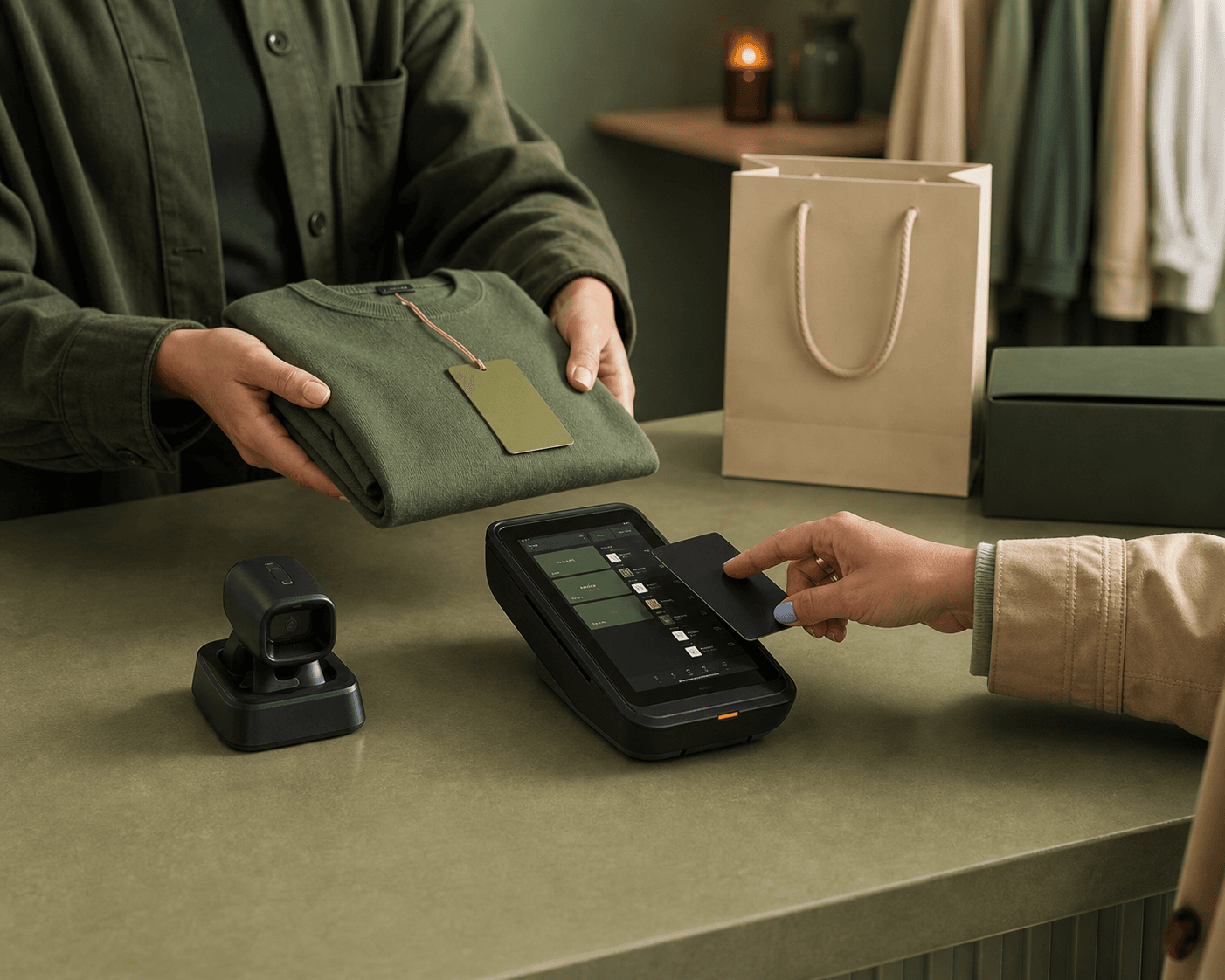
Retail POS
Retail checkout starts with finding the right product, often out of hundreds of similar items. Put the catalogue and stock count through their paces as well as timing the sale.
Independent shops
Sell two sizes of the same item, apply a discount to just one, and check that the receipt shows why the totals differ. Then try finding the sale after the customer has left. If you handle exchanges, ask how the old and new items affect stock.
Convenience stores
Build a basket with a frequently bought product, a multipack and an item you have to find by name. Scan each barcode and watch which stock record changes. Add a delivery to the test so you can check that items on the shelf agree with the count at the till.
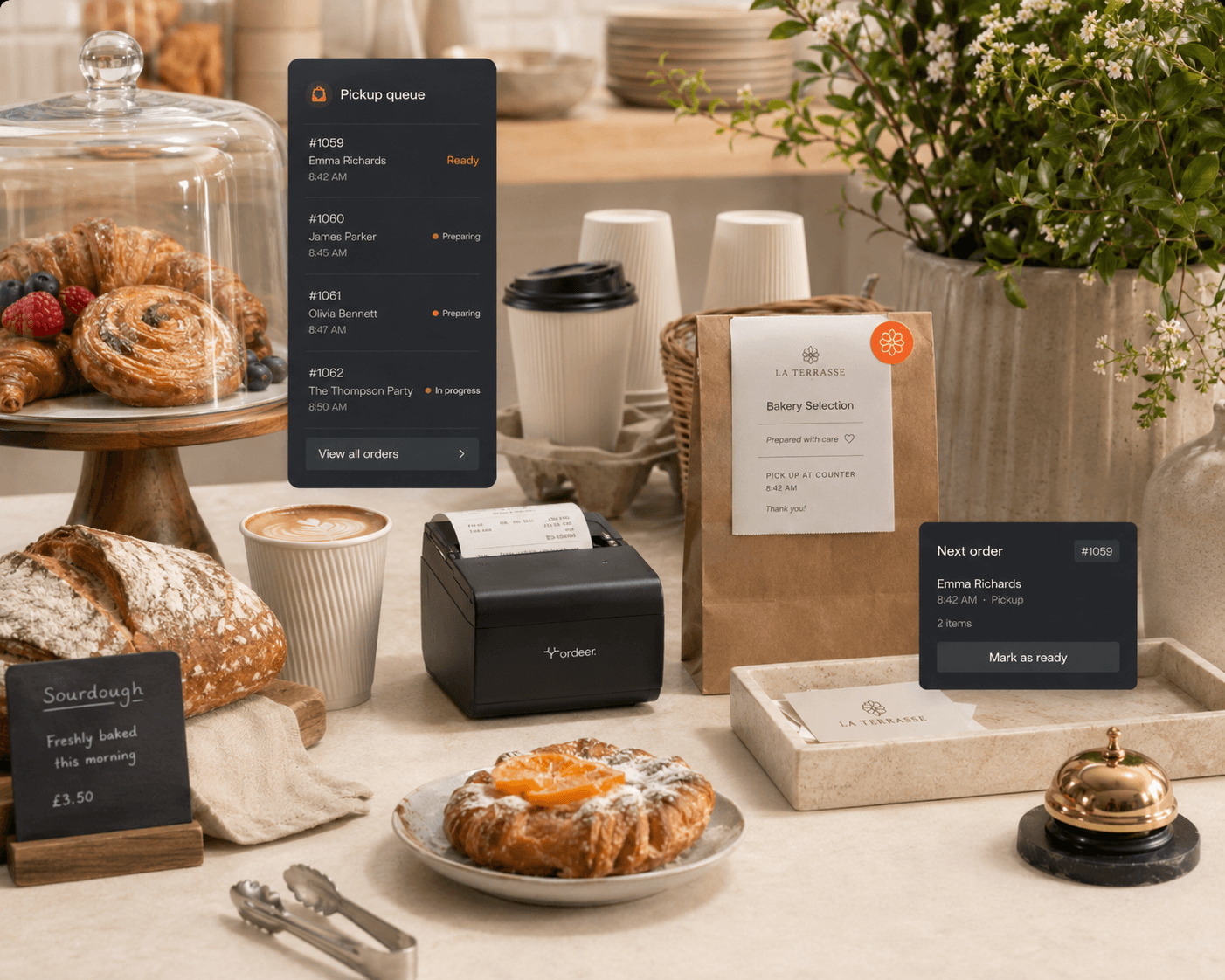
Hospitality POS
The order has a life before the payment. Check that it reaches whoever makes it, changes are clear, and balances can be settled at the pace your service demands.
Restaurants
Open a table, enter dishes for several guests and add a preparation note. Change a dish after the kitchen has seen the ticket, then check what the kitchen sees and what the customer owes. Try the way you normally split the final bill.
Cafés
Put the same drink through twice with different sizes, milk choices or extras. Check that the price and instructions are clear at the counter and at the point of preparation. Time the steps staff repeat in a busy morning queue.
Takeaways
Take a collection order with substitutions and confirm how staff identify it when a customer arrives. If orders also come in online or by phone, decide how the kitchen sees each one and how staff prevent the same order being entered twice.
Pubs and bars
Open a tab, add another round, and settle it with a different member of staff. Check how they find the right tab, confirm the running total and tell that it is closed. Try ordering food during the same visit.
How to choose your POS system
Run the same test on every system you consider. Give each test a clear result, such as “staff can find a past receipt in one attempt” or “the two tills show the same remaining quantity.”
Record who tried it, what they could do independently and what equipment was used. A trial run using sample data gives you a clearer comparison than a feature list.
Can staff finish your busiest sale?
Write down a typical rush-hour order and an awkward one with an extra, correction or discount. Hand both to the person who usually works the till. Have them find the items, take payment and locate the receipt without prompting.
Can you trust the end-of-day numbers?
Put sample cash and card sales through, then compare the sales report, cash count and terminal totals. Check that a refund or void appears where you expect and that you can separate shifts or tills when you need to.
Is there a workable outage procedure?
Test the till and payment terminal separately in a quiet period. Decide how staff should handle an unconfirmed payment, keep track of orders and check for duplicates after reconnection. Ask if signing in or checking a licence needs internet access.
Will your existing equipment work?
List the exact till, scanner, printer, drawer and terminal models, plus how they connect. Confirm compatibility before buying parts or changing payment providers. Test a receipt, barcode and cash-drawer operation with the equipment you expect to use.
Can your records be recovered or moved?
Ask what data you can back up, export or bring across, and which formats are supported. Check product records and historical sales separately. Before switching, record opening stock and decide how long you need access to the old reports.
What changes when you grow?
Count the number of devices and locations that need the same view of stock. Consider who needs to see reports away from work and whether you want to sell online. Compare the first year and a normal year with those requirements in mind.
POS hardware and compatibility
Choose equipment around how staff take orders, accept payment and issue receipts. These are common POS devices and the checks to make before buying or reusing one.
- Touchscreen till or computer
- The register runs the software. Check its operating system and version, available ports and space at the counter. Test whether cashiers can read the screen and reach common actions quickly.
- Barcode scanner
- A scanner sends an item code to the till. Confirm that its connection and input mode are supported and that it reads the types of labels you use, including labels that are small or curved.
- Receipt or kitchen printer
- A receipt printer gives the customer a record. A kitchen printer sends an order to staff. Check the printer model, paper width, drivers and how it connects. Test the actual text and layout you need to read at a glance.
- Cash drawer
- A cash drawer may open through a connection to the receipt printer or through a separate interface. Check the cable and how the till triggers it. Confirm staff have an agreed manual way to open it when needed.
- Card terminal
- The terminal runs the payment and receives the provider’s result. With a separate terminal, staff enter the amount themselves. An integrated terminal can receive the amount from the till, but only with a supported provider and device.
- Network and power
- Check where wired connections, sockets and wireless coverage are needed. A network printer or kitchen screen can lose its connection even when a local till keeps running. Test from the spot where each device will be used.
Ordeer Free, PRO and Custom AI+
Choose around the work you need to share. A shop that runs on one till can start with Free. If staff need a shared stock view or you need remote reports, compare PRO. Custom AI+ is for a defined requirement such as a tailored workflow or an integration that needs development.
Free
£0 software licence
For a till that can run independently.
- Tills and data
- Each till runs independently and stores sales and stock locally.
- Reports and support
- 12 months of local sales reports. Remote setup and support are PRO services.
- Payments
- Use a separate payment setup if you take cards. The Free till has no terminal integration.
- Online selling
- Standalone checkout and orders. No connected online shop.
PRO
£10 + VAT per month
For businesses that need remote access or connected tills.
- Tills and data
- Cloud access and terminal synchronisation for connected stock and sales.
- Reports and support
- Unlimited reporting history, plus support with remote setup and training.
- Payments
- Integration with selected terminals. Provider fees and compatibility apply.
- Online selling
- Template-based ecommerce, with support.
Custom AI+
Bespoke quotation
For requirements that go beyond a standard setup.
- Tills and data
- Cloud-enabled EPOS with development scoped around your needs.
- Reports and support
- PRO reporting and support, with options for custom dashboards, workflows and AI automation.
- Payments
- Custom integrations can be scoped, subject to provider and device compatibility.
- Online selling
- Bespoke website design, ecommerce and integrations can be quoted.
Before changing plans. Decide which products, prices and historic records you need to retain. Talk to Ordeer about what can move, what needs setting up again and when to switch over. Hardware and payment services are separate from the UK plan prices shown here.
See the full pricing and feature comparisonHow to get started with Ordeer
The wizard shows the next step available for your business type and edition. If it has no registration or demo route for your selection, you can contact the team.
Go to setup wizardChoose your business type
Pick Retail for shops or Hospitality for food and drink service. Have a few representative products or menu items ready and note which staff need to use the till.
Pick standalone or Cloud
Choose Offline Free for a standalone Windows till or Online Cloud if you need connected access. If you already have hardware or a payment provider, check compatibility before committing to either setup.
Follow the available route
If direct registration is offered, enter the requested business details, UK trading address and acknowledgements. A successful registration shows download instructions or the Cloud continuation. If the wizard offers a demo, use it to request a conversation.
Test your first trading day
Before taking live sales, prepare your catalogue or menu, check the till and any peripherals, and agree how staff will handle payments. Run a few sample transactions and compare the report with the receipts and payment totals.
Common POS problems and FAQs
Find out what to check when a sale, device or report behaves differently from what you expected.
What to have ready
Note the till, the time, the exact message you saw and what happened just before it. For a sale or report, find the transaction reference and the dates you were looking at. Those details help narrow down which part of the setup needs attention.
Licence and setup
Is there a monthly charge for Ordeer Free?
The standalone Ordeer Free licence has no monthly software fee or trial expiry. Hardware and card processing are separate. Cloud access and supported setup services are offered through PRO.
Can I run the Ordeer Free till on a Mac, iPad or Android tablet?
The Offline Free setup shown in the wizard is for Windows tills. If you have another kind of device, ask which setup it can run before changing equipment. A tablet with a web browser should not be assumed to run the Windows till software.
Why am I offered a demo instead of a download?
The wizard shows the actions available for your business type and edition. A demo request asks the team to contact you. An available registration instead leads to download instructions or the Cloud continuation after it succeeds.
Which countries can register through the Ordeer website?
Direct registration, when offered, asks for a UK trading address. Card terminal and payment support depend on the provider and region. Contact Ordeer about your country and preferred setup before making purchases.
Can I get help setting up my catalogue and training staff?
PRO includes remote setup and training. Gather a short sample of your products or menu and the equipment you use so the team can discuss how to set it up. Start with the current plan details.
I used Codeer POS. Who should I contact about my setup?
Ordeer POS is the retail and hospitality EPOS brand of Codeer Labs Ltd. If you have a former Codeer POS setup, tell us which edition and version you use so the team can advise on your specific installation.
Internet, payments and devices
What should staff check first when the internet goes down?
Check the till, card terminal and any connected order device separately. They can fail in different ways. Use your agreed outage procedure and record any sale you have to handle outside the till so you can reconcile it later.
Can an offline till take an offline card payment?
That depends on the payment provider, terminal and merchant account. Confirm whether offline authorisation exists, when transactions are sent and who bears the risk of a later decline. A local record on the till alone tells you nothing about authorisation.
The terminal timed out. Should I put the card through again?
Check the terminal’s transaction history or provider status first. If approval is unclear, follow the provider’s instructions before retrying. Compare the provider reference with the till record so the sale and payment can be reconciled.
Can I use the card terminal I already own?
With a separate terminal you follow its provider’s rules and reconcile the payment against the till. For an integrated connection, Ordeer PRO supports selected terminals. Have the provider and terminal model ready when checking the payment and terminal comparison.
What can I check when a barcode does not scan?
Try a barcode that has scanned before to isolate the fault. If that works, check the item’s stored barcode and try looking it up manually. If both fail, check the scanner’s connection and mode before replacing it.
A payment succeeded but the receipt did not print. What next?
Find the completed sale and confirm its status before changing anything. Check the printer’s paper, connection and the printer selected in the till. Look for the receipt options on the completed sale. Ringing up a second sale can make the day’s totals wrong.
Stock, reports and recovery
Why do the till’s card totals differ from the amount paid into my bank?
Compare the same trading period first. Payouts can bundle several days, settle after a cut-off or have fees, refunds or adjustments deducted. Reconcile by payment provider reference where possible before treating the difference as missing money.
Why does the stock figure disagree with what is on the shelf?
Check which till and product variant you are looking at. Then review deliveries, wastage, sales and returns since the last count. Correct the stock after identifying the cause, so the next count tells you whether the error was fixed.
Why can’t I see an older sale in my report?
Check the report’s date filter and which terminal recorded the sale. Ordeer Free offers 12 months of local sales reporting on the individual till. Before relying on a report for older records, ask what can be exported or archived from your setup.
How do I close a trading day that runs past midnight?
Agree whether reports should follow the calendar or your service shift. Check the period and time zone used by the till and the payment provider. Record the start and end times when comparing the gross sales, cash count and card total.
How should I prepare for a local till failure?
Confirm where your data is stored, how to make a supported backup, and how it can be restored. Keep a copy separate from the device if your setup supports that. Test that replacement equipment can read or restore the records you need.
Can I move records from an old till into a new one?
Ask what can be transferred and in what format before turning off the old system. Check products, stock, balances and sales history separately. A successful catalogue import does not tell you which historic records, if any, can be moved.
Extra tills, upgrades and online selling
Can I run Ordeer Free on two counters that share one stockroom?
A Free till runs independently. Entering a sale on one Free till will not update another till’s stock figure. If staff need a shared count for the same goods, compare the connected terminal setup in PRO before buying more equipment.
What should I check before moving from Free to PRO?
List the registers, users and data that need to be connected. Confirm the supported transfer process with Ordeer, and test the change when the shop is quiet. Agree how to compare opening stock and the first trading day’s figures.
Can someone see sales reports away from the premises?
Ordeer PRO adds remote access through its cloud-connected setup. Free reports are local to the till. If another person needs access, check which devices, accounts and permissions are appropriate for your chosen setup.
Will Ordeer work with my existing online shop?
PRO includes template-based ecommerce. If you already use a storefront, ask about compatibility and how orders and stock would be managed. Ordeer can scope a bespoke integration where development is needed.
When is custom development worth considering?
Describe the task that standard checkout cannot handle and how often it occurs. Ask what inputs, outputs and exceptions a custom workflow should cover. A clear example, such as sending agreed sales data to another system, gives Ordeer something concrete to scope.
Can I use a POS report as my sole accounting record?
Treat point-of-sale reports as one source to reconcile against terminal statements, invoices, cash and other records. Ask your accountant which details you need to retain for your business and country, and check that your chosen setup can supply them.
Further reading on POS and EPOS
Use these guides when you’re comparing providers, choosing equipment or drawing up a test for your first service.
Browse all Ordeer guidesPOS basics and hardware
What is an EPOS system?
What an EPOS system does, which parts are software and which are hardware, and what UK restaurants and shops should compare before choosing one.
Software costs and payments
What does free EPOS actually cover?
What 'free EPOS software' really covers, what usually costs extra with any provider, and the questions that uncover the total cost of a till setup.
Restaurant setup
Restaurant EPOS buying checklist
A working checklist for comparing restaurant EPOS systems: tables, tabs, modifiers, kitchen flow, split bills, reporting, hardware, support and cost.